
The short version
- Start
Bloodborne.exe. The setup checks your game and your PC. - Pick a goal: Balanced if unsure. Take the resolution marked "Recommended".
- Press PLAY. The first minutes can stutter while the shader cache is built. That is normal.
Not smooth? Read If it doesn't run well. Want a number for your PC? Use the hardware check.
Your first start, screen by screen
The first time you open the launcher, a short setup with five steps sets everything up. You can change every setting later.
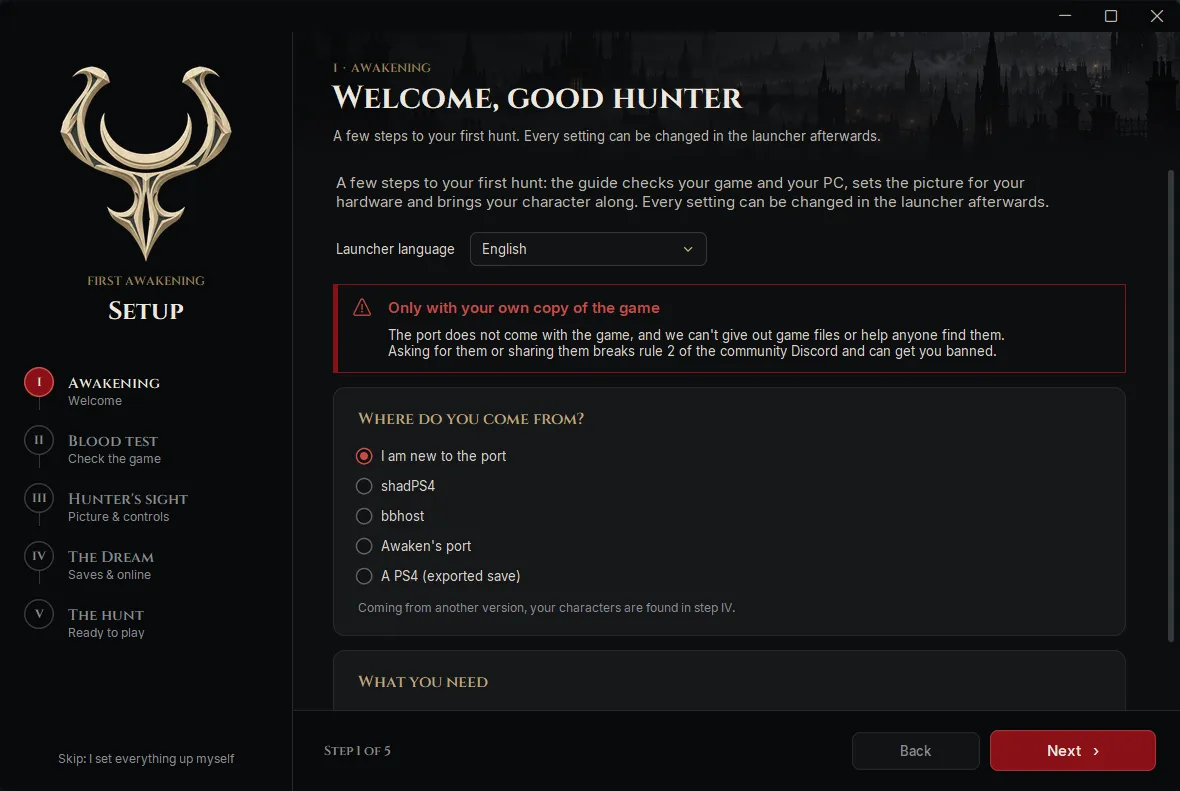
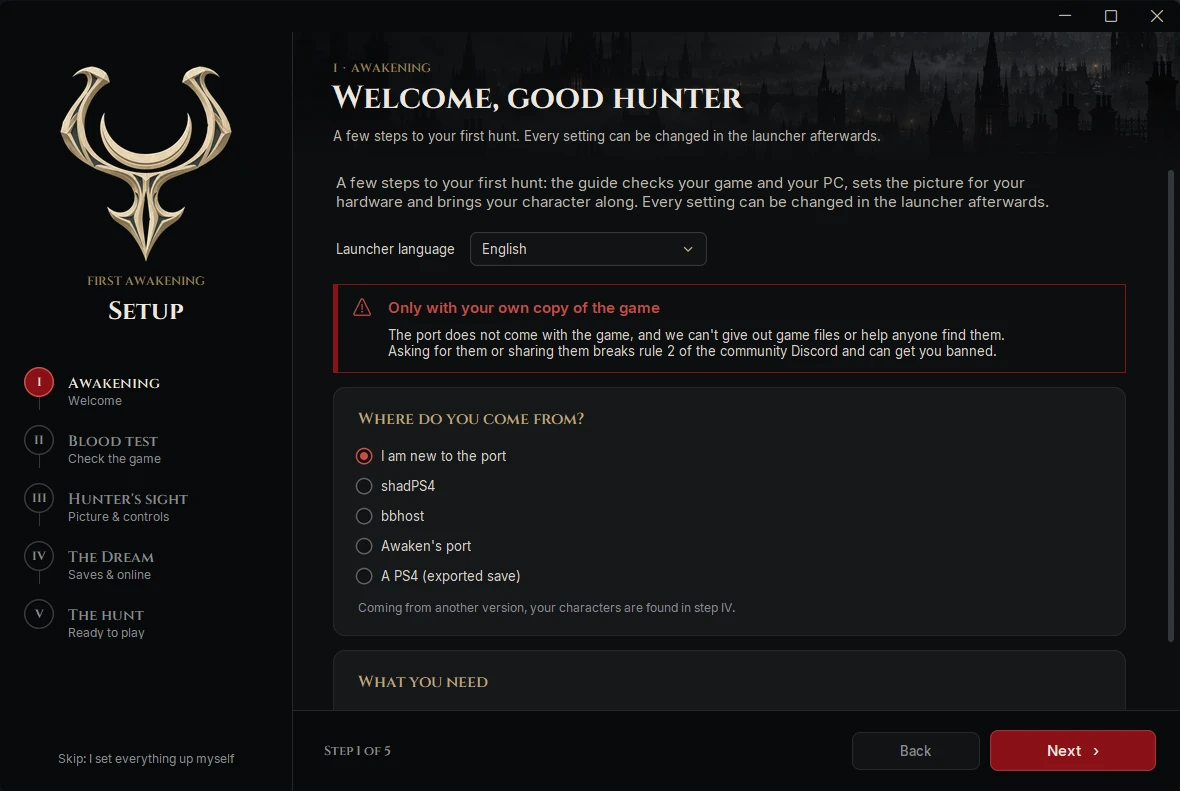
Step 1: Welcome
Pick the launcher language and "I am new to the port". Coming from shadPS4, bbhost, Awaken's port or a PS4 save? Pick that instead, so step 4 finds your characters.
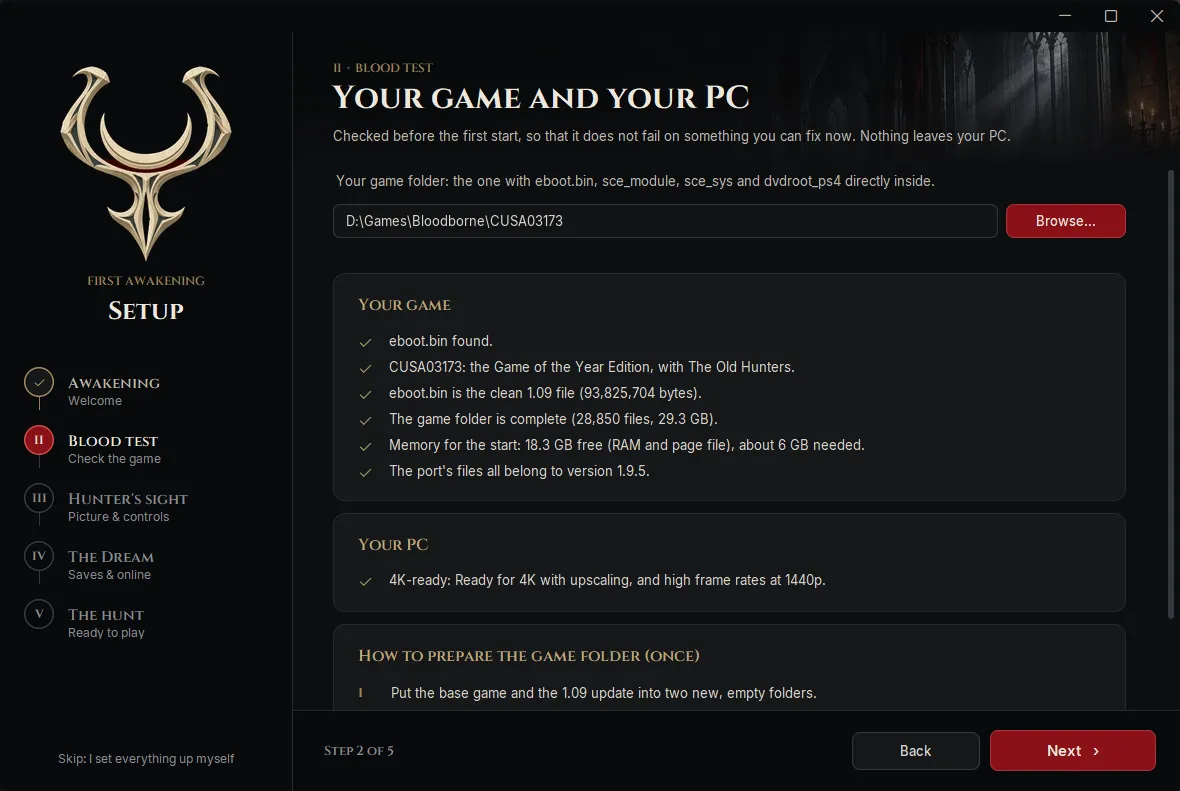
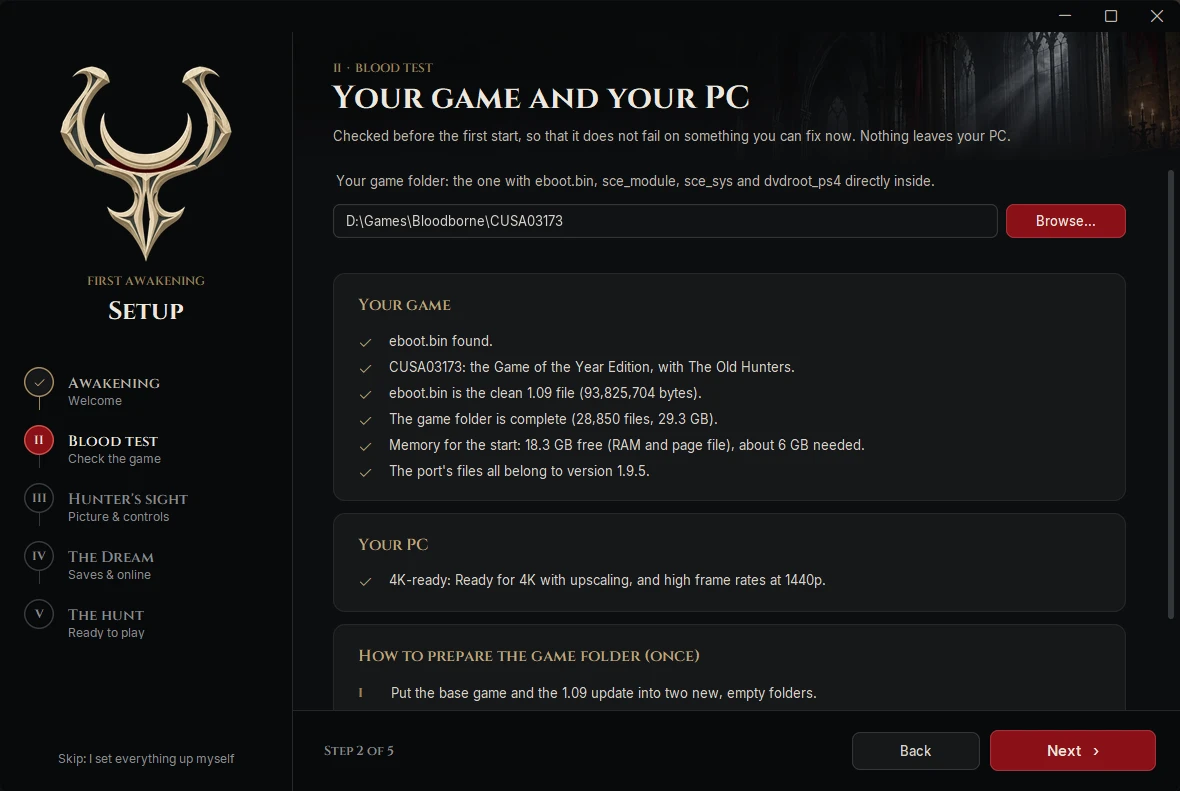
Step 2: Your game and your PC
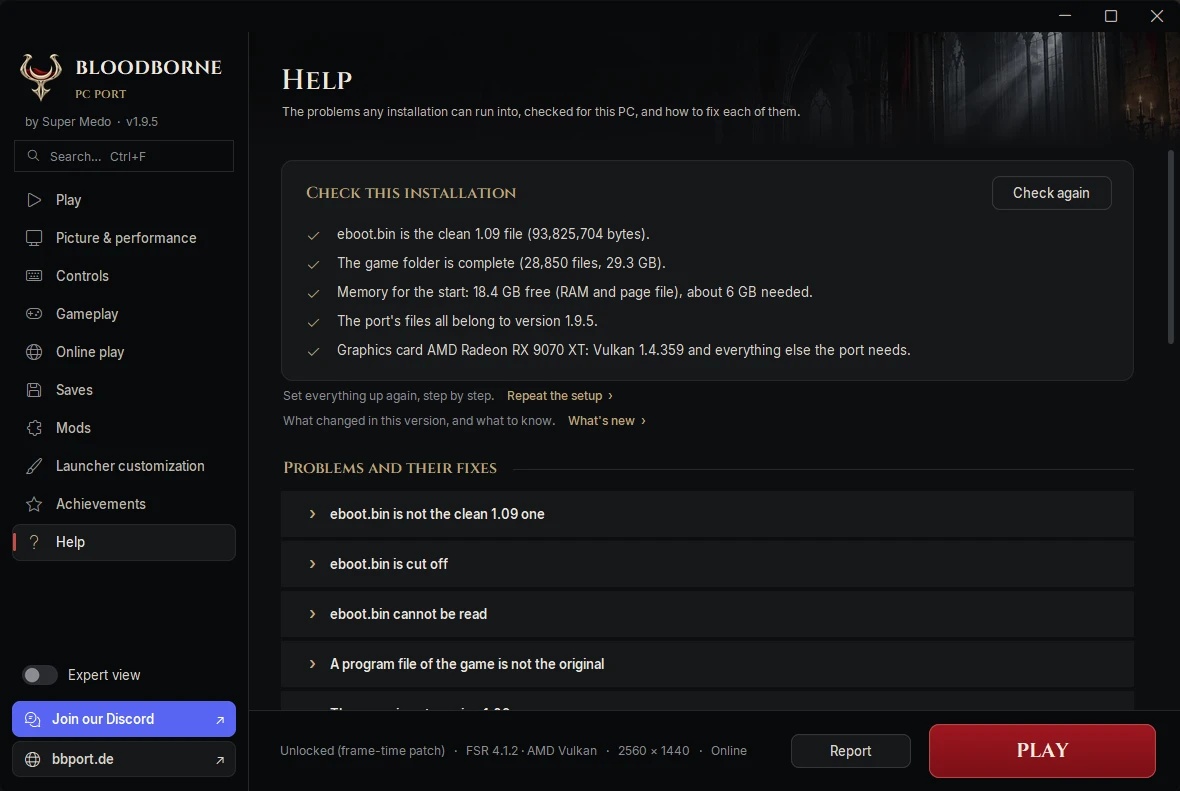
Choose the folder of your game dump: the one with eboot.bin, sce_module, sce_sys and dvdroot_ps4 directly inside. Every line should get a tick, for your game and for your PC. A red line says what is wrong and how to fix it.
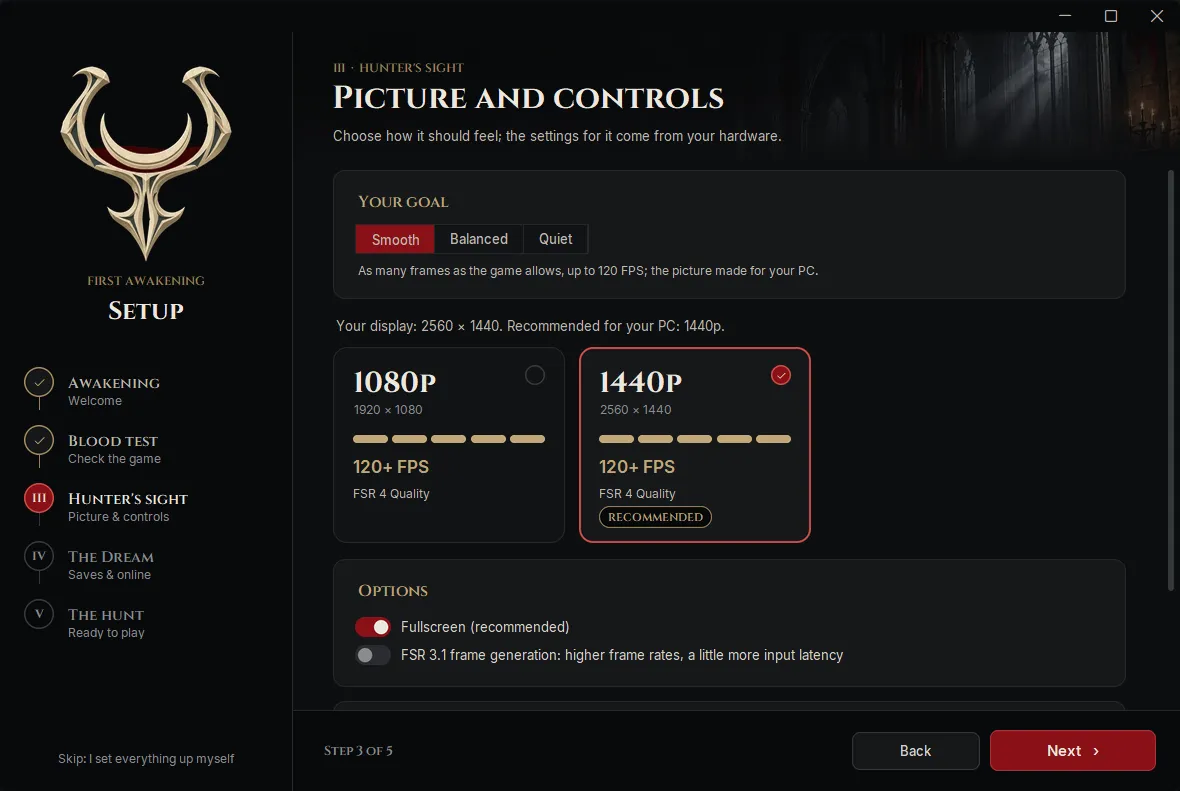
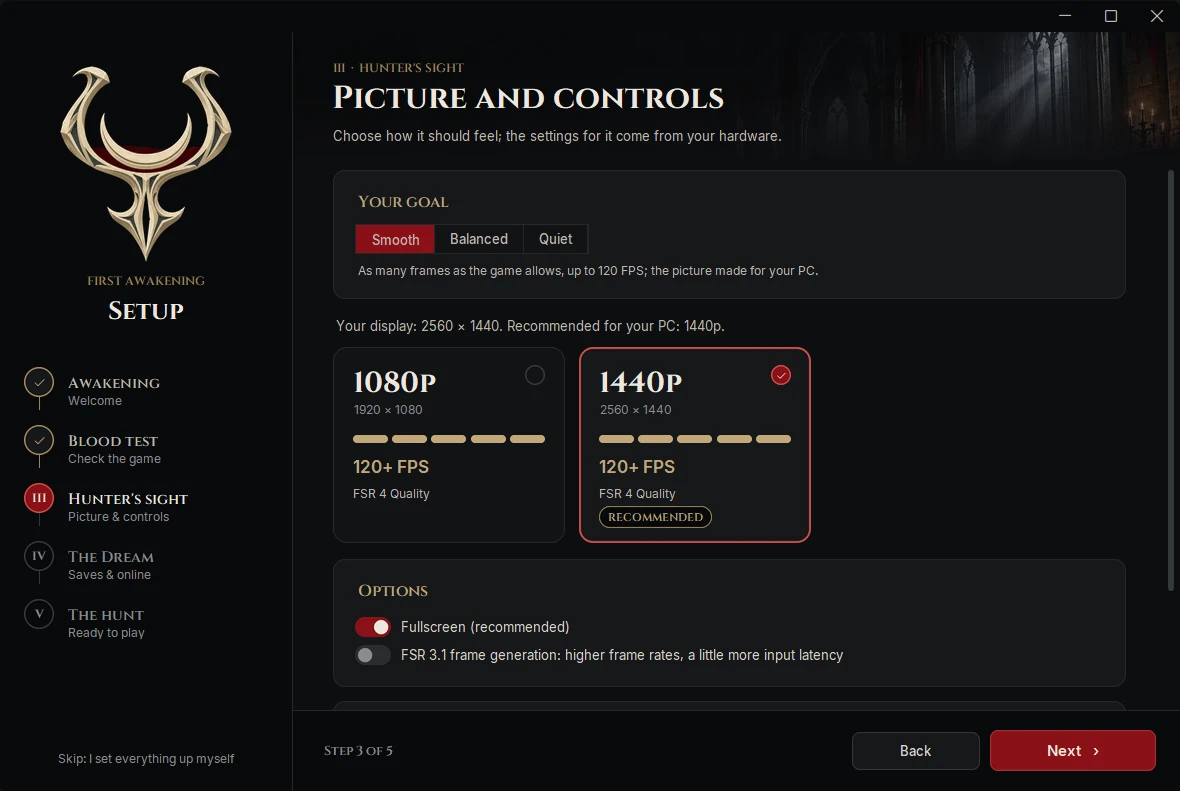
Step 3: Picture and controls
Choose your goal (more on that below) and take the resolution marked "Recommended". Keep Fullscreen on; frame generation is optional. Further down, say whether you play with a controller or with keyboard and mouse.
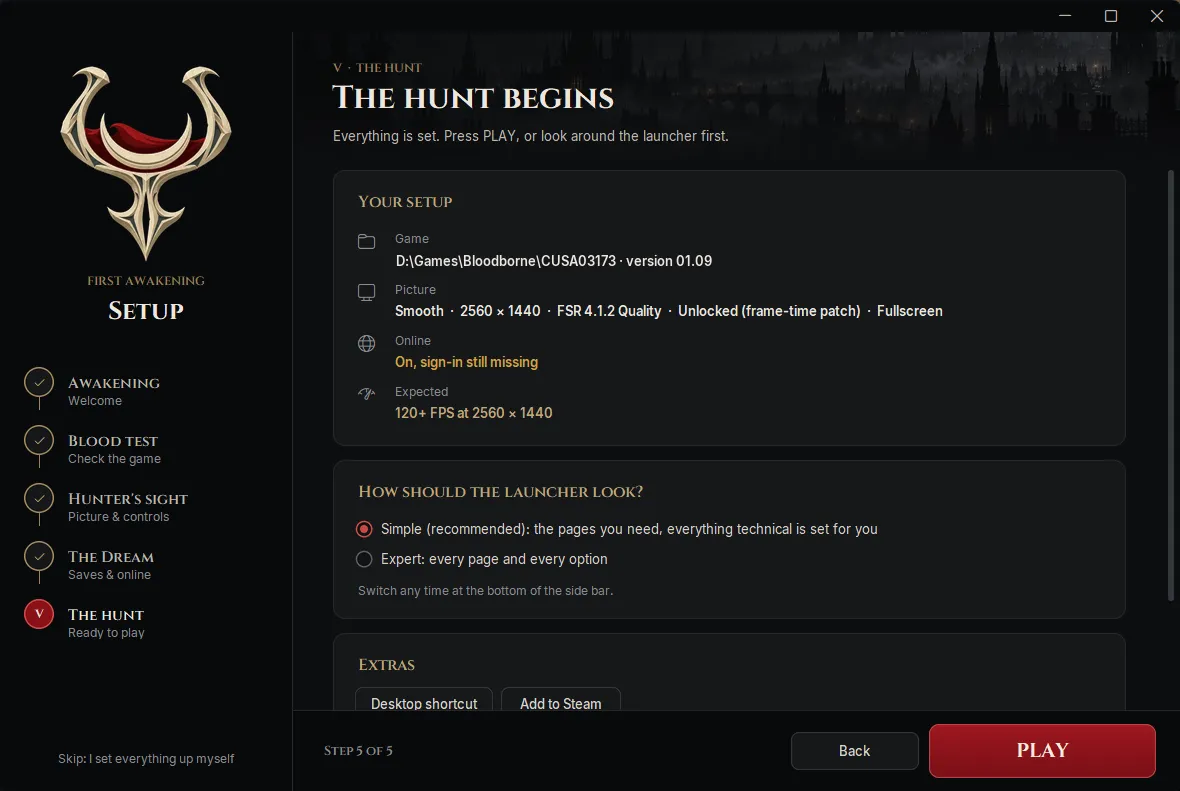
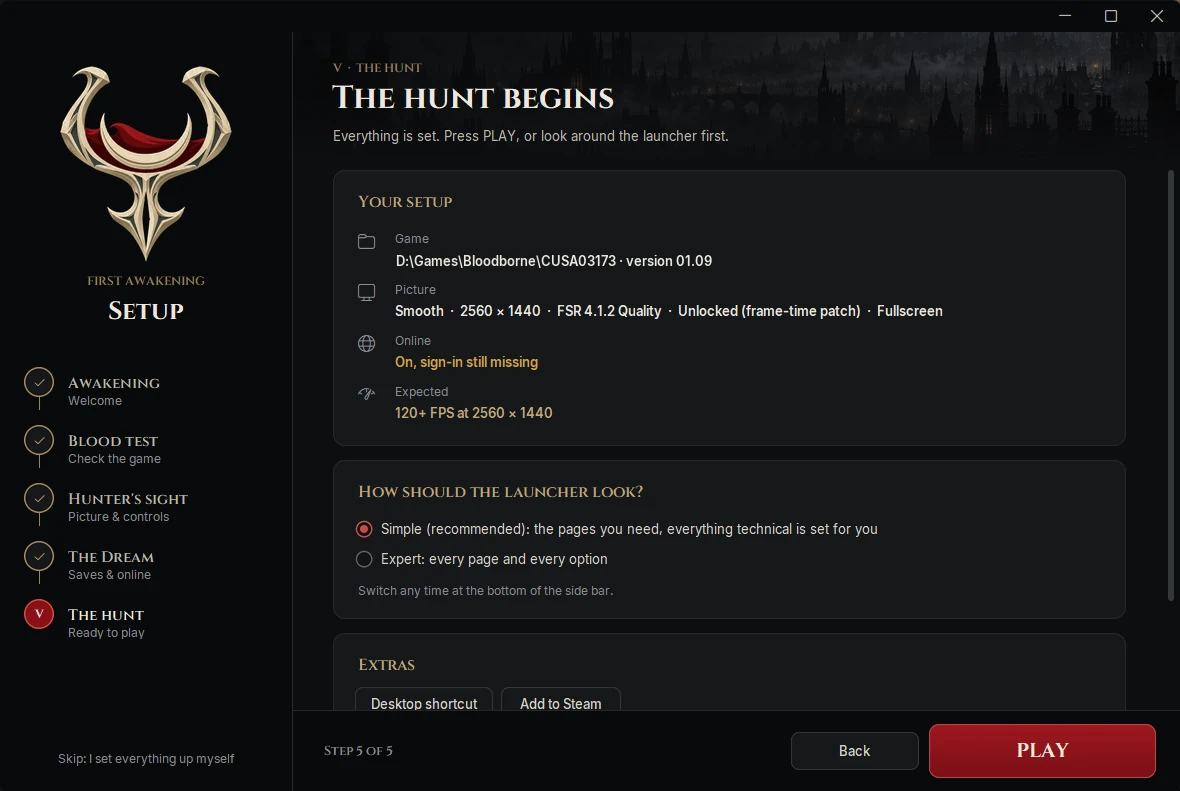
Step 5: The hunt begins
Step 4 brings your characters from other versions along and turns on online play on SuperMedo Server: sign in once with Discord, now or later (both optional). Step 5 sums it all up. Keep "Simple" if you are new: you only see the pages you need. Then press PLAY.
Your goal: Smooth, Balanced or Quiet
This is the one choice that really matters. The launcher turns it into resolution, upscaler and frame rate for your graphics card. You find it on the Play page and on Picture & performance.
| Goal | What it does | Good for |
|---|---|---|
| Smooth | As many frames as the game allows, up to 120 FPS; the picture made for your PC. | Strong PCs and high refresh screens. |
| Balanced | A steady 60 FPS with the best picture your graphics card has room for. | Most players. A good start if unsure. |
| Quiet | 60 FPS and a little less detail: the graphics card works less, stays cooler and quieter. | Laptops, small cards, hot rooms. |
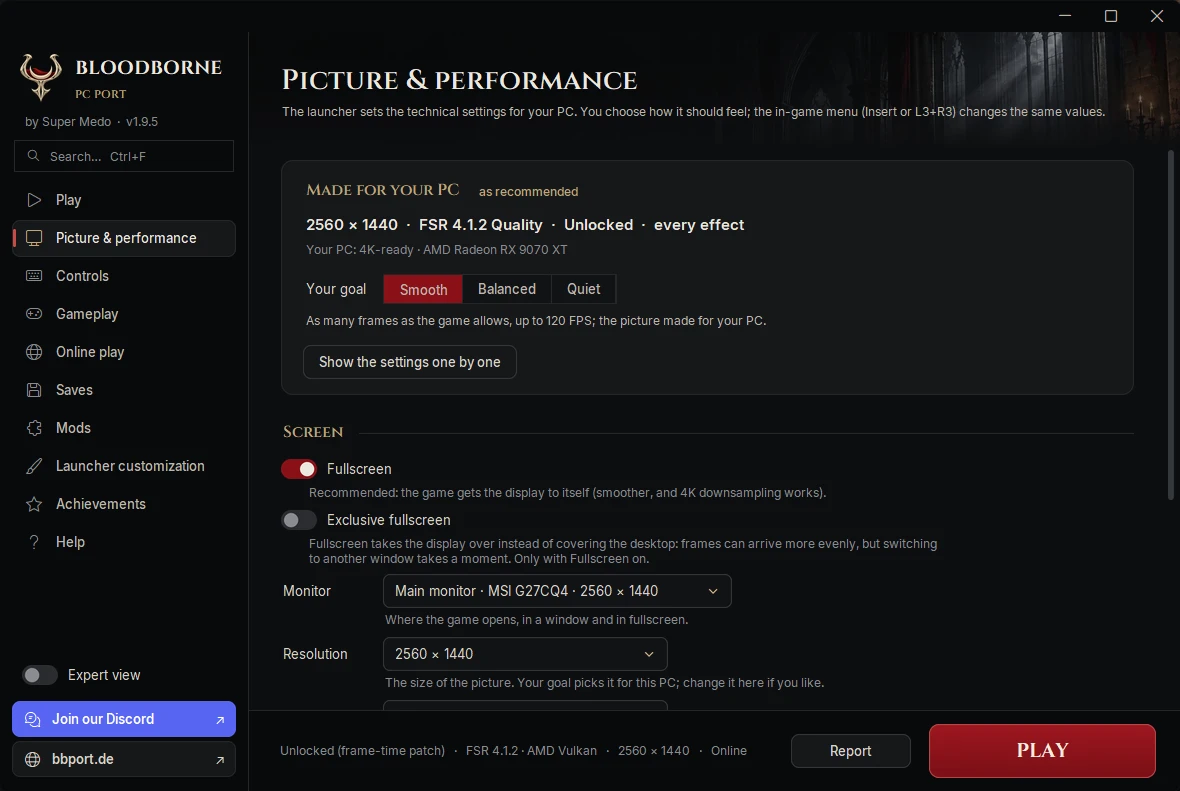
- Measure on this PC is switched off for now (since 1.9.4) and comes back in a later version. Until then, your goal sets everything for you.
- Show the settings one by one lists each setting next to the one for your PC. When the launcher has changed your settings, Undo appears there and puts back what you had before.
- In the game, Insert (keyboard) or L3 + R3 (controller) opens the port's menu: change the upscaler, resolution and effects while you play.
Settings by graphics card
The launcher picks these for you. Use the table if you want to set things yourself, or to check that nothing is off.
| Your card | Resolution | Upscaler | Frame rate | Frame generation |
|---|---|---|---|---|
| 4 GB of video memoryGTX 1050 Ti, GTX 1650, RX 570, RX 6500 XT | 720p or 1080p | FSR 3.1 Performance | 60 FPS cap | Off |
| 6–8 GB, older cardsGTX 1660, RTX 2060, RX 5600 XT, RX 6600 | 1080p | DLSS or FSR 3.1 Balanced | 60 FPS | Off |
| 8 GB, recommendedRTX 3060 Ti, RTX 4060, RX 6700 XT, RX 7600 | 1440p | DLSS or FSR 3.1 Quality | 60–90 FPS | Optional, from 60 base FPS |
| 12–16 GBRTX 4070, RTX 5070, RX 7800 XT, RX 9070 | 1440p, or 4K | DLSS or FSR 4 Quality (4K: Balanced) | Unlocked | On if you like: DLSS on RTX 40/50, FSR 3.1 on others |
| Intel graphicsArc A750, Arc B580, Arc 140V and other built-in Intel graphics | 1080p (built-in: 720p) | Off (no upscaler on Intel) | 30–60 FPS | Off |
- 4 GB cards: keep Advanced → Low-VRAM profile on "Auto" (it switches on by itself) and Model detail on "Default". Object motion turns itself off below 6 GB. Keep the Windows page file on "System managed".
- DLSS needs a GeForce RTX card. FSR 4 is best on Radeon RX 7000 and 9000; older cards use FSR 3.1.
- Frame generation feels best from about 60 FPS before it doubles them, and adds a little input delay.
If it doesn't run well
- Stutter in the first minutes after installing or updating: the shader cache is built. Play on, it gets better.
- Stutter later, or textures that load late: the video memory is full. Go one step down: Quality → Balanced → Performance, or a lower resolution, and a 60 FPS cap. The goal Quiet does this for you.
- Crashes: update the port and your graphics driver, close MSI Afterburner, RTSS and other overlays. In expert view: Advanced → Two-stage GPU pipeline → "Off (more stable)".
- Black screen or flicker: Help → Only a black screen → Clear the shader cache.
- The game closes right after PLAY (code 3): Windows gives the port too little memory. The fix is in the FAQ.
Still stuck?
Look in the FAQ and in Known Fixes: solutions that worked for others. Then ask in Help & Support with Help → Save a report attached.
Pictures from launcher 1.9.5 in English; your version may look a little different.